```
Run the following to delete the cluster and create a single node
It may be best to run this line by line to see the output.
```
systemctl stop pve-cluster corosync
pmxcfs -l
rm /etc/corosync/*
rm /etc/pve/corosync.conf
killall pmxcfs
systemctl start pve-cluster
```
(Optional) Disable cluster/HA services
```bash
systemctl disable --now pve-ha-crm pve-ha-lrm corosync.service
```
# Install FreeNAS Initiator
##### When the cluster is used a convergent model with TrueNAS, the patches need to be installed for the FreeNAS Initiator to show under the storage dialogue
[GitHub Repo](https://github.com/TheGrandWazoo/freenas-proxmox)
#### Option 1
---
##### Connect to each node and install the following keys
```
curl https://ksatechnologies.jfrog.io/artifactory/ksa-repo-gpg/ksatechnologies-release.gpg -o /etc/apt/trusted.gpg.d/ksatechnologies-release.gpg
curl https://ksatechnologies.jfrog.io/artifactory/ksa-repo-gpg/ksatechnologies-repo.list -o /etc/apt/sources.list.d/ksatechnologies-repo.list
```
##### Then issue the following to install the package
Line 3 may now be in the code after I put in the GitHub issue. [Link](https://github.com/TheGrandWazoo/freenas-proxmox/issues/109#issuecomment-1367527917)
```
apt update
apt install freenas-proxmox -y
systemctl restart pvescheduler.service
```
#### Option 2
---
This is the manual way to do this. However, I don't do it this way now that there is a package to install. The benefit to the package is that once Proxmox is updated, the TrueNAS configurations are not overwritten.
Let's create the SSH keys on the Proxmox boxes. (The IP must match your iSCSI Portal IP) You only need to create the keys on one node if they are clustered as the keys will replicate to the other nodes.
```bash
$portal_ip=192.168.2.252
mkdir /etc/pve/priv/zfs
ssh-keygen -f /etc/pve/priv/zfs/$portal_ip_id_rsa
ssh-copy-id -i /etc/pve/priv/zfs/$portal_ip_id_rsa.pub root@$portal_ip
```
##### Enable "Log in as root with password" under Services -> SSH on the FreeNAS box.
Make an SSH connection from every node to the iSCSI Portal IP
```bash
ssh -i /etc/pve/priv/zfs/$portal_ip_id_rsa root@$portal_ip
```
##### Install the REST client on every node
```bash
apt-get install librest-client-perl git
```
##### Download the patches on every Proxmox node
```bash
git clone https://github.com/TheGrandWazoo/freenas-proxmox
```
#####
##### Install the patches on every Proxmox node
These can be run all at once but it is harder to see the output
```bash
cd freenas-proxmox
patch -b /usr/share/pve-manager/js/pvemanagerlib.js < pve-manager/js/pvemanagerlib.js.patch
patch -b /usr/share/perl5/PVE/Storage/ZFSPlugin.pm < perl5/PVE/Storage/ZFSPlugin.pm.patch
patch -b /usr/share/pve-docs/api-viewer/apidoc.js < pve-docs/api-viewer/apidoc.js.patch
cp perl5/PVE/Storage/LunCmd/FreeNAS.pm /usr/share/perl5/PVE/Storage/LunCmd/FreeNAS.pm
```
##### Restart the PVE services
```bash
systemctl restart pvedaemon
systemctl restart pveproxy
systemctl restart pvestatd
```
If you are using a cluster restart the following services as well.
```bash
systemctl restart pve-ha-lrm
systemctl restart pve-ha-crm
systemctl restart pvescheduler.service
```
Reload the PVE webgui. Now FreeNAS-API should be available as an iSCSI provider.
# Reset SSL Certificate
#
Navigate to the following directory
```bash
cd /etc/pve/local
```
rename the .key and .pem files for backup
```bash
pvecm updatecerts --force
systemctl restart pveproxy
```
The backup .PEM and .KEY files can be deleted if the web interfaces loads without error
# Resize VM Disk
## Resizing the guest disk
#### General considerations
When you resize the disk of a VM, to avoid confusion and disasters think of the process like adding or removing a disk platter.
If you **enlarge** the hard disk, once you have added the disk plate, your partition table, and file system knows nothing about the new size, so you have to act inside the VM to fix it.
If you **reduce** (shrink) the hard disk, of course removing the last disk plate will probably **destroy** your file system and remove the data in it! So in this case it is paramount to act in the VM in **advance**, reducing the file system and the partition size. SystemRescueCD comes in very handy for it, just add its iso as cdrom of your VM and set boot priority to CD-ROM.
Shrinking disks is not supported by the PVE API and has to be done manually.
Another page (deleted) with overlapping content was [Resizing disks](https://wiki.koryalbert.net/index.php?title=Resizing_disks&action=edit&redlink=1 "Resizing disks (page does not exist)") | [Archive](http://web.archive.org/web/20150914170505/http://pve.proxmox.com/wiki/Resize_disks)
#### qm command
You can resize your disks online or offline with command line:
```bash
qm resize
```
exemple: to add 5G to your virtio0 disk on vmid100:
```
qm resize 100 virtio0 +5G
```
For virtio disks:
Linux should see the new size online without reboot with kernel >= 3.6
Windows should see the new size online without reboot with last virtio drivers.
for virtio-iscsi disk:
Linux should see the new size online without reboot with kernel >= 3.7
Windows should see the new size online without reboot with last virtio drivers.
## Enlarge the partition(s) in the virtual disk
Depending on the installed guest there is several diffent ways to resize the partions
#### Offline for all guests
Use **gparted** or similar tool (recommended)
In gparted and possibly most other tools, **LVM and Windows dynamic disc is not supported**
Boot the virtual machine with gparted or similar tool, enlarge the partion and optionally the file system. With som linux clients you often need to enlarge the extended partion, move the swappartion, shrink the extended partion and enlarge the root partion. (or simple delete the swap and partion andre create it again - but remember to activwate the swap agin (last step).
Gparted have some warnings about some specific operations not well supported with windows guest - outside the scope of this document but read the warnings in gparted.
#### Online for Windows Guests
- Guest is Windows 7, Windows Vista or Windows Server 2008
- logon as administrator and extend the disk and filesystem (Using Disk manager)
- For more info [www.petri.co.il/extend-disk-partition-vista-windows-server-2008.htm](http://www.petri.co.il/extend-disk-partition-vista-windows-server-2008.htm)
- Guest is Windows 10: logon as administrator and extend the disk and filesystem (Using Disk manager). If you do not see the ability to extend the disk (i.e. nothing seems to have happened as a result of using the resize command), go to the Windows command prompt and do a: shutdown -s -t 0 (This is a "normal" shutdown, as opposed to the "fast" shutdown that's the default for Win 8 and onwards.) After a reboot, you'll now see the ability to expand the disk.
#### Online for Linux Guests
Here we will enlarge a LVM PV partition, but the procedure is the same for every kind of partitions. Note that the partition you want to enlarge should be at the end of the disk. If you want to enlarge a partition which is anywhere on the disk, use the offline method.
- Check that the kernel has detected the change of the hard drive size
(here we use VirtIO so the hard drive is named vda)
```
dmesg | grep vda
[ 3982.979046] vda: detected capacity change from 34359738368 to 171798691840
```
Print the current partition table
```
fdisk -l /dev/vda | grep ^/dev
GPT PMBR size mismatch (67108863 != 335544319) will be corrected by w(rite).
/dev/vda1 34 2047 2014 1007K BIOS boot
/dev/vda2 2048 262143 260096 127M EFI System
/dev/vda3 262144 67108830 66846687 31.9G Linux LVM
```
Resize partition 3 (LVM PV) to occupy the whole remaining space of the hard drive)
```bash
parted /dev/vda
(parted) print
Warning: Not all of the space available to /dev/vda appears to be used, you can
fix the GPT to use all of the space (an extra 268435456 blocks) or continue
with the current setting?
Fix/Ignore? F
```
```bash
(parted) resizepart 3 100%
(parted) quit
```
Check the new partition table
```
fdisk -l /dev/vda | grep ^/dev
/dev/vda1 34 2047 2014 1007K BIOS boot
/dev/vda2 2048 262143 260096 127M EFI System
/dev/vda3 262144 335544286 335282143 159.9G Linux LVM
```
## Enlarge the filesystem(s) in the partitions on the virtual disk
#### Online for Linux guests with LVM
Enlarge the physical volume to occupy the whole available space in the partition:
```bash
pvresize /dev/vda3
```
Enlarge the logical volume and the filesystem (the file system can be mounted, works with ext4 and xfs)
```bash
lvresize --size +20G --resizefs /dev/xxxx/root #This command will increase the partition up by 20GB
```
```bash
lvresize --extents +100%FREE --resizefs /dev/xxxx/root #Use all the remaining space on the volume group
```
#### Online for Linux guests without LVM
Enlarge the filesystem (in this case root is on vda1)
```bash
resize2fs /dev/vda1
```
# Choose boot Kernel
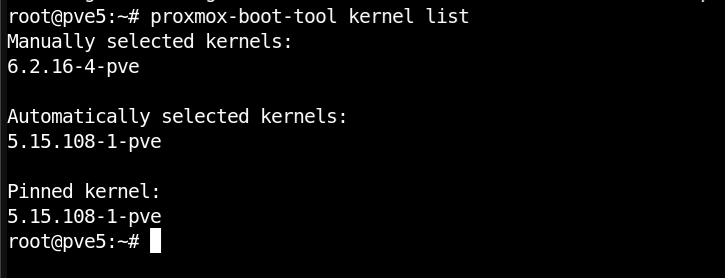
Proxmox comes with a built-in tool called `proxmox-boot-tool`. We can list the available kernels on the system and choose the best kernel and set it to always boot from this kernel.
#### List and choose boot Kernel
`proxmox-boot-tool kernel list`
Example output:
[](https://kb.koryalbert.net/uploads/images/gallery/2023-08/screenshot-from-2023-08-12-08-53-11.png)
Now that we know which kernel we want we must run the following command and reboot.
`proxmox-boot-tool kernel pin 5.15.108-1-pve && reboot`
This will pin the kernel we want to use. We may need to unpin a kernel we don't want. The following command can be used to remove a kernel from the pinned list
`proxmox-boot-tool kernel unpin 5.15.108-1-pve`